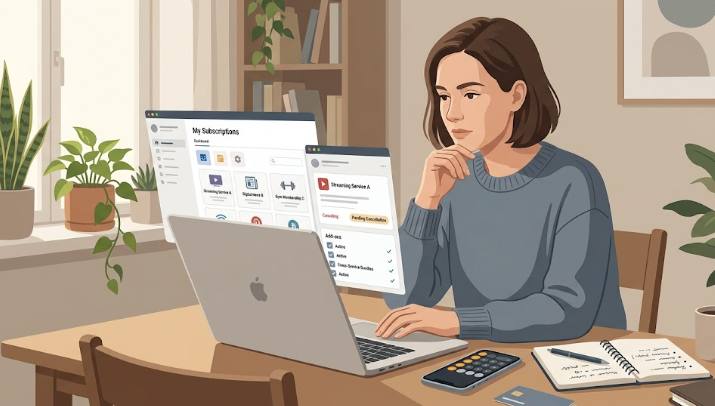
Quick answer: To cancel Amazon Prime ($14.99/mo or $139/yr) without losing benefits early, use Amazon’s official cancellation flow and choose the option that ends your membership at the end of your current paid period if Amazon shows that choice. If your membership was billed through Google Play, cancel from Google Play instead; Google says canceled subscriptions can still be used for the time already paid. If your real goal is a refund, check the refund rules first; stopping renewal and getting money back are related but separate decisions.
You are not here because you suddenly “hate” Prime.
You are here because you want to stop the renewal without accidentally losing benefits too early, and without realizing later that the cancellation did not actually stick.
This guide is the practical version of that decision. It is not about whether Prime is worth it in general. It is about how to cancel it cleanly, at the right time, with the least confusion.
Read this first if refunds are your main concern: Amazon Prime Refund Policy: Who Gets Money Back?
Before you cancel: 3 things to check first
- Your renewal date: note when Prime renews next so you know what date you are trying to stop.
- Your current-period usage: if you already used Prime benefits this period, think “stop the next renewal” first and “refund” second.
- How you subscribed: if your Prime membership was created through Google Play on Android, your cancellation path may be different.
This two-minute check can prevent a lot of the confusion people run into later.
A safer way to cancel and keep benefits until the right time
Start from Amazon’s official cancellation page and follow the path into your Prime membership settings.
- Step 1: Open your Prime membership management page from Amazon’s official help flow.
- Step 2: Choose End your membership. Amazon may show several prompts that encourage you to keep Prime. Keep going until you reach the actual cancellation timing options.
- Step 3: If Amazon gives you a timing choice, choose the option that keeps your benefits until the end of your current paid period if that is what you want.
- Step 4: Save proof. Screenshot the screen that shows your membership end date or updated account status.
The key idea is simple: do not cancel faster than your intent. If your goal is only to stop the next charge, choose the path that preserves the benefits you already paid for.
Will you lose Prime benefits immediately?
Not always.
For many members, the important difference is between ending renewal now and ending benefits right now. Those are not always the same thing. If Amazon offers a choice during cancellation, the safer move is usually the one that keeps benefits until your current paid period ends.
If you want a refund and you think you may qualify, that is a separate question and should be checked before you confirm anything. Start here: Amazon Prime Refund Policy: Who Gets Money Back?
If you subscribed through Google Play
If your Prime membership was created through Google Play, you may need to cancel it through Google’s subscription management instead of Amazon’s usual web flow.
Google says that when you cancel a subscription on Google Play, you can still use it for the time you already paid for. Google’s official steps are here: Cancel, pause, or change a subscription on Google Play.
If you do not see the normal Amazon “End membership” path, check first whether your membership is tied to Google Play before assuming something is broken.
Do not confuse canceling with pausing
Amazon also offers a way to pause eligible Prime memberships. That can sound similar to canceling, but it is not the same choice.
Pausing is useful when you want billing to stop for a while, but it can also change benefit access in ways that do not match what people mean when they say, “I want to keep what I already paid for until the end.”
If your goal is simply to stop the next renewal without cutting off the current period too early, ordinary cancellation with the correct timing choice is often the cleaner path.
How to confirm the cancellation actually stuck
This is the part many people skip.
- Write down the date Amazon shows for when your membership ends or changes status.
- Set a reminder for two or three days after that date.
- Check your payment method after the old renewal date to make sure a new Prime charge did not appear.
The cancellation is not really “done” just because you clicked through it once. It is done when the membership status and billing behavior match what Amazon showed you.
One thing people miss: Prime Video add-ons and other subscriptions
Canceling Prime does not automatically mean every other Amazon-linked subscription disappears too.
If you use Prime Video Channels or other subscriptions attached to your Amazon account, review those separately. Otherwise, people sometimes think they canceled “Amazon” when they only canceled Prime itself.
Amazon’s Manage Subscriptions page lets you see all subscriptions linked to your account, and a separate Amazon page covers how to cancel Prime Video add-on subscriptions specifically. (Manage Amazon Subscriptions; Cancel Prime Video add-on subscriptions)
A clean timing rule
If you already know Prime is no longer worth keeping, often the cleaner move is this:
- Stop the next renewal.
- Keep the current paid period if Amazon gives you that choice.
- Only optimize for a refund if your case clearly fits Amazon’s rules.
That sequence helps avoid two common mistakes: canceling too fast and expecting a refund when your real goal was simply to stop paying going forward.
FAQ
How do I cancel Amazon Prime without losing benefits right away?
Use Amazon’s official cancellation flow and, if Amazon gives you a timing choice, select the option that ends your membership at the end of your current paid period rather than immediately.
Will I still have Prime until the end of the month or year?
Often, yes, if you choose the end-of-period option during cancellation. That is why the timing choice matters more than simply clicking “cancel” as fast as possible.
What if my Prime membership was billed through Google Play?
Then you may need to cancel through Google Play instead of Amazon’s standard web flow. Google’s subscription help explains the process and says you can continue using a canceled subscription for the time already paid for: Cancel, pause, or change a subscription on Google Play.
Does pausing Prime do the same thing as canceling?
No. Pausing and canceling are different choices. If your goal is to keep current benefits until the right time and stop the next renewal, pausing may not always match what you want.
Do Prime Video add-ons cancel automatically when I cancel Prime?
Do not assume they do. Review your Amazon subscriptions separately so you do not leave extra recurring charges running in the background.
Will canceling Prime close my Amazon account?
No. Canceling Prime ends the paid Prime membership, not your Amazon account. You can still log in, shop, view your order history, and manage other Amazon subscriptions. The main change is that Prime-only benefits, such as Prime shipping speeds and Prime Video access through Prime, no longer apply after the membership ends.